How to add batch transactions ?
To add batch transactions, proceed as follows:
- Access the ACCEO Transphere homepage.
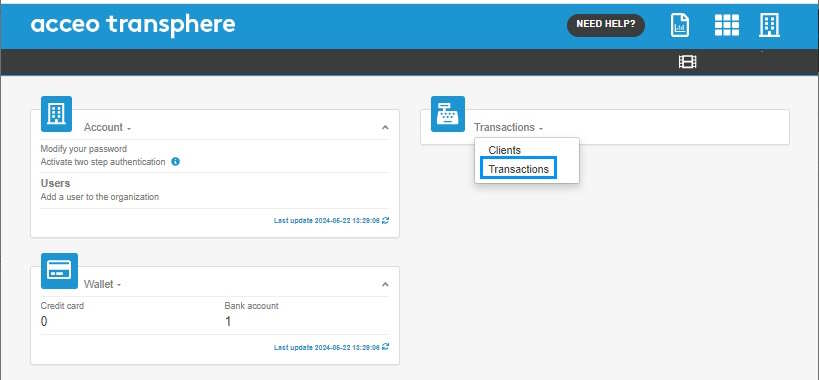
- Click Transactions and select Transactions.
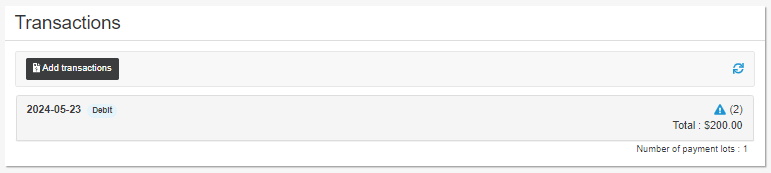
- In the Transactions page, click the Add transactions button.
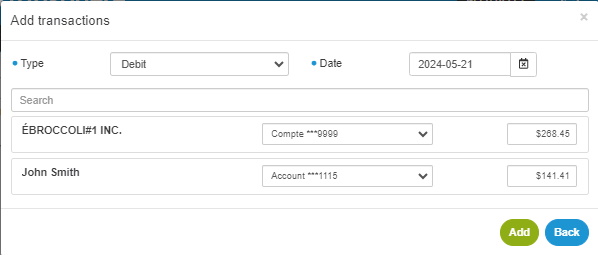
Note: The fields preceded by a blue · dot are mandatory.
- Select the Type of transaction (e.g. debit).
- Click the calendar to select the Date, i.e. the date of the transfer.
- For each client concerned, select the appropriate bank account and enter the Amount of the transaction.
- Click the Add A message indicates that the transactions have been successfully added.
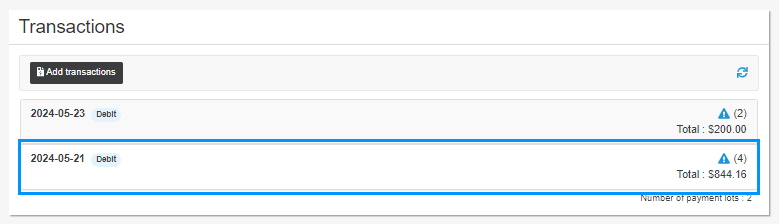
In the Transactions page, the addition of a batch of four transactions is displayed. The Total amount of the four transactions is also indicated.