How to add a transaction to a single employee ?
Most of the time payrolls are processed in lots, but in some cases the payroll manager must pay a bonus to an employee or reimburse the employee’s expenses.
To add a transaction to an employee, proceed as follows:
- Access the ACCEO Transphere homepage.
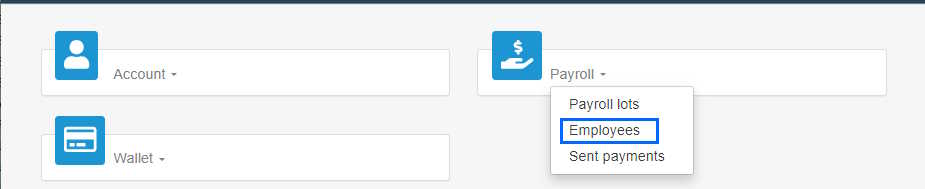
- Click Payroll and select Employees.
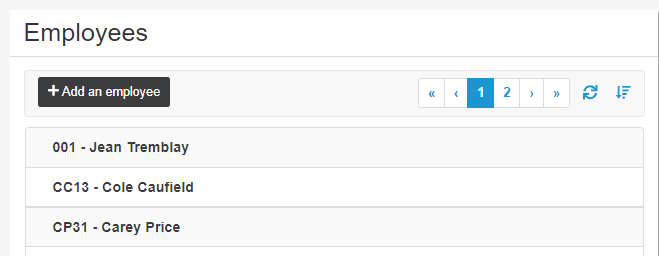
- In the Employees page, click the appropriate employee to open their file.
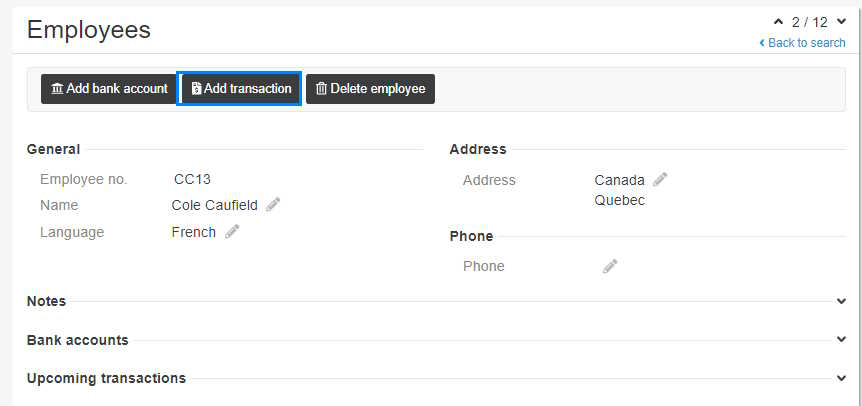
- Click the Add transaction button.
- Enter the Amount of the transaction.
- The Bank account is displayed. If the employee has more than one bank account, click the arrow to select the appropriate account, if required.
- Enter the transaction payment date. Note: Allow for 48 hours between the submission date and the expected payment date.
- In the Reference number field, enter a short description of the transaction (e.g. bonus, expense account, etc.) so that it is easy to differentiate among the other transactions.
- Click Add. A message indicates that the transaction was added successfully.
- In the employee file, the transaction is displayed in the Upcoming transactions section.
- Its status indicates Waiting to be submitted. Transactions are submitted from the Payroll lots page (see Submit a payroll lot).
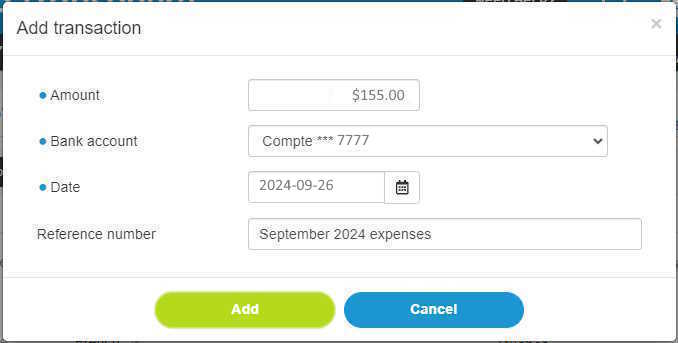
Note: The fields preceded by a blue dot  are mandatory.
