How processed payments report ?
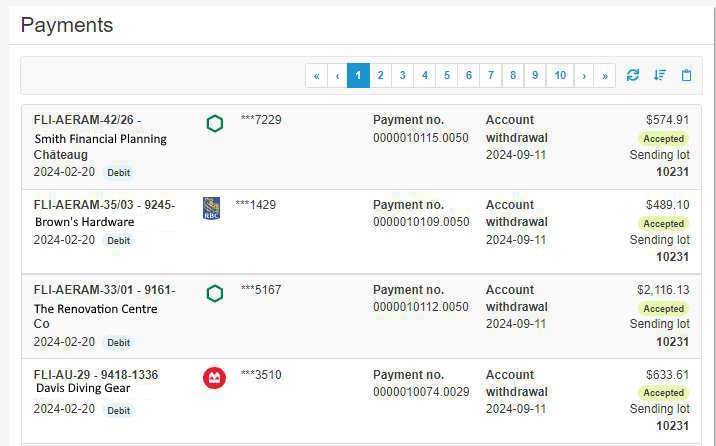
Processed payments are those which have been sent to the financial institution and which have been processed. The list displays the accepted payments and rejected payments, if any.
To view the processed payments report, proceed as follows:
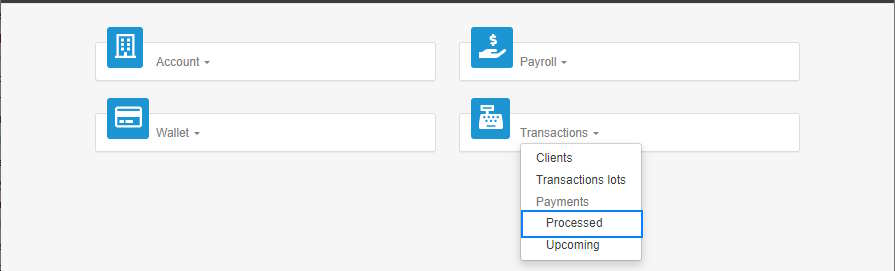
- Access the ACCEO Transphere homepage.
- Click Transactions and select Processed. The list displays the payments which have been processed, including payments which have been rejected, if any.
- To refresh the data in the list, click the Refresh
 button.
 - To sort payments in the list, click the Sort button and select the appropriate option.
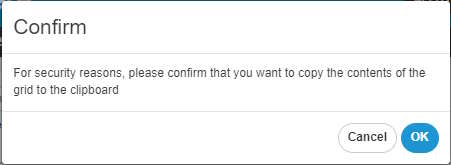
- To copy the content of the list to import it into Excel, click the Copy to clipboard button. A message requests confirmation.
- Click OK. A message indicates that the content was copied successfully.
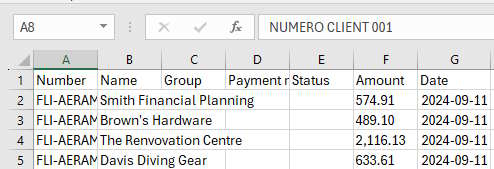
- Open Excel and copy the content of the Clipboard.
- The processed payment information is copied in the file (number, name, amount, date, etc.). Save the Excel file.
 button.
 button and select the appropriate option.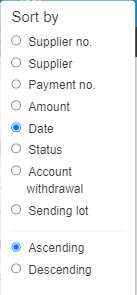
 button. A message requests confirmation.