How to submit a payroll lot ?
Once the payroll lot has been generated, submit the payments so that the payrolls are deposited in the employees’ bank accounts.
Warning: Once the lot is submitted, it is closed and cannot be modified. Any other payroll generated for the same date will be found in a new lot.
To submit a payroll lot, proceed as follows:
- Access the ACCEO Transphere homepage.
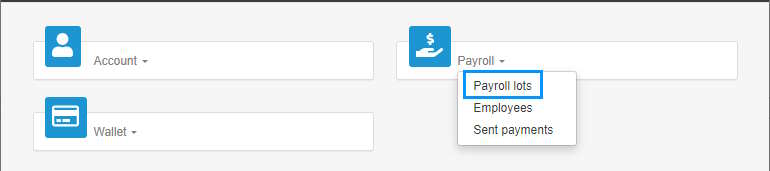
- Click Payroll and select Payroll lots.
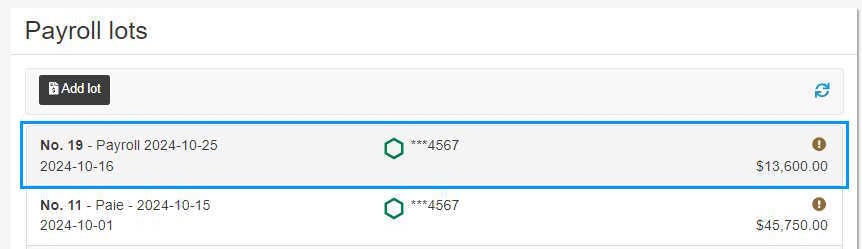
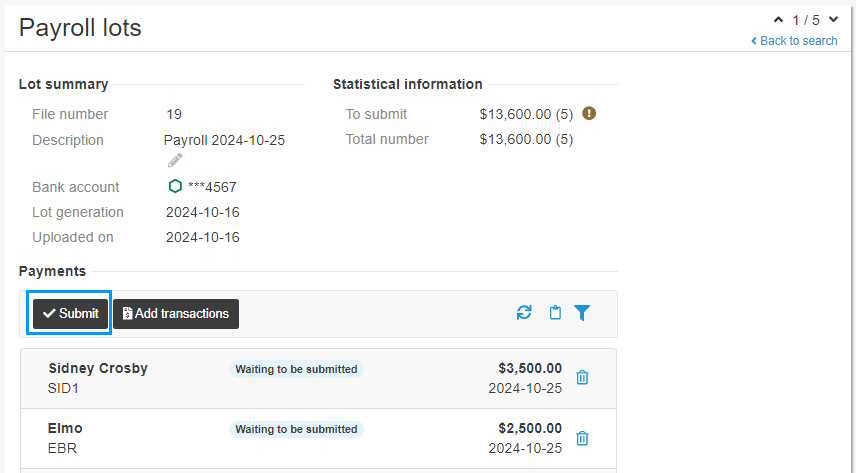
- In the Payroll lots page, click the line of the lot to submit to display the detail on screen.
- The Lot summary displays the lot number, the bank account from which the amount of the lot will be withdrawn, the lot generation date, etc. The Statistical information section indicates the $ amount to submit and the number of payrolls included in the lot. In the Payments section, the transaction status indicates Waiting to be submitted.
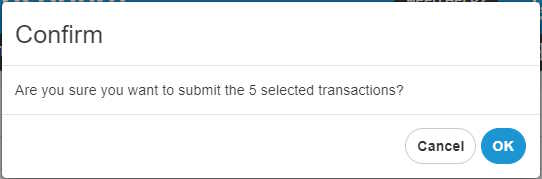
- Click Submit. A confirmation message is displayed.
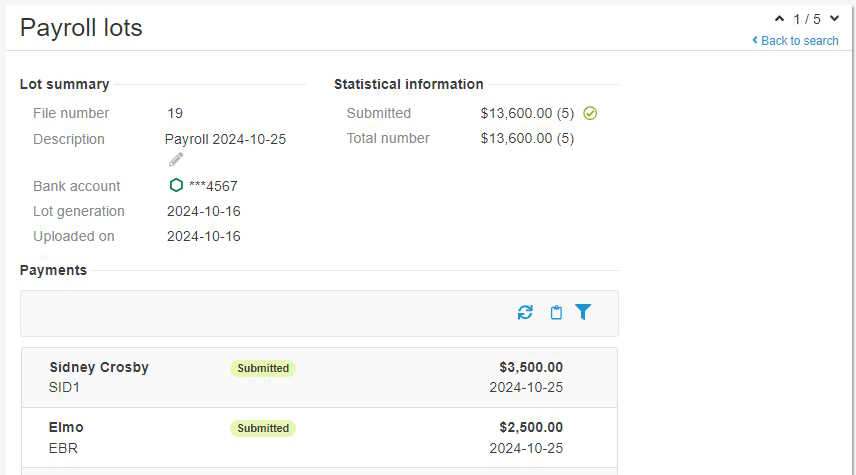
- Click OK. A message indicates that the transaction was submitted successfully.
- In the Payments section, the transactions status indicates Submitted.
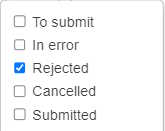
- To filter the list, click the Filter button
 .
. - Select the filter options to apply in the list.
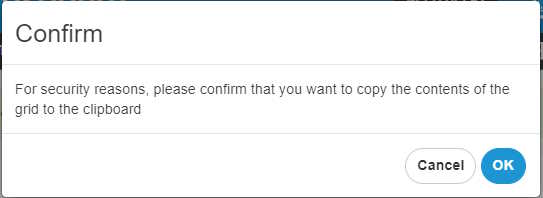
- To copy the content of the list of payrolls to import to Excel, click the Copy to clipboard button . A message requests confirmation.
- Click OK. A message indicates that the content was copied successfully.
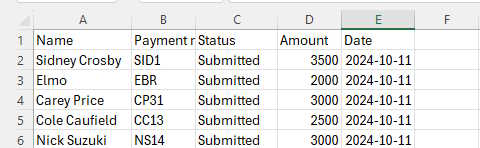
- Open Excel and copy the content of the Clipboard.
- The payroll information is copied in the file (employee name, payment no., status and amount of pay and payment date). Save the Excel file.
 .
.
 . A message requests confirmation.