How to sent payments ?
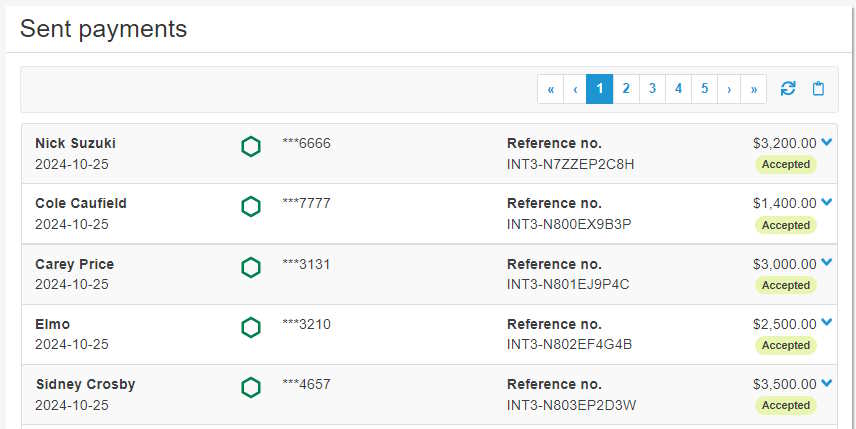
The Sent payments list displays all payrolls which have been deposited in the employees’ bank accounts.
To view the sent payments, proceed as follows:
- Access the ACCEO Transphere homepage.
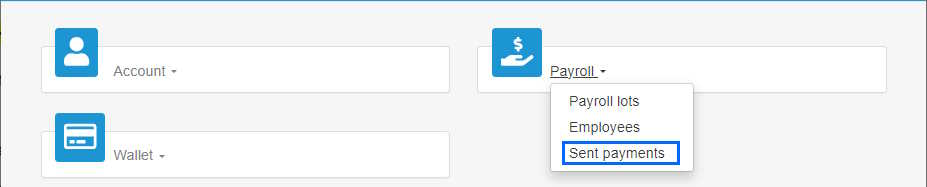
- Click Payroll and select Sent payments.
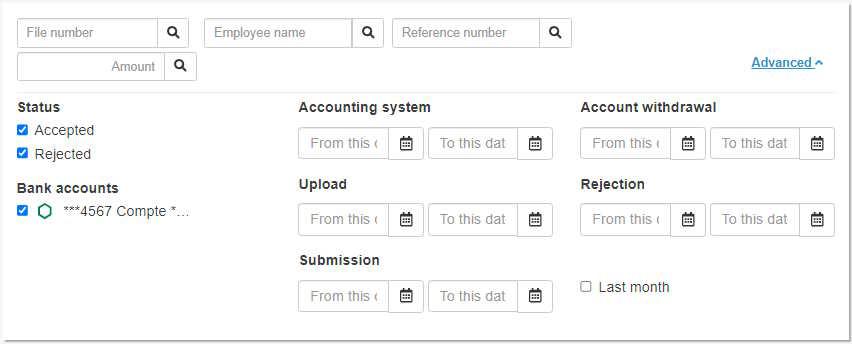
- Click the Advanced arrow to filter the list of sent payments by specifying the search criteria (file number, amount of batch, status of payments, lot submission date, etc.). The date below displays the payments that meet the specified criteria.
- The list displays the payments that have been sent: the employee’s name, deposit date, bank account number, reference number, payment amount and the Accepted status. If the
 icon is displayed next to the date, it means that the deposit date is different from the payment date that had been specified.
 - To copy the content of the list to import it to Excel, click the Copy to clipboard button
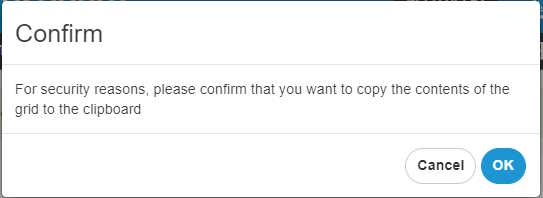
 . A message requests confirmation.
 - Click OK. A message indicates that the content was copied successfully.
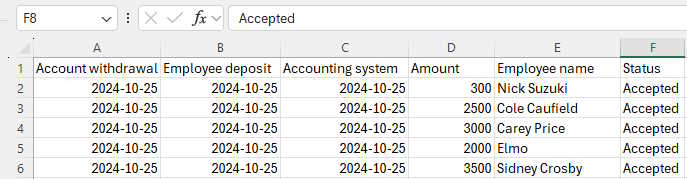
- Open Excel and copy the content of the Clipboard.
- The sent payments information is copied in the file (withdrawal date, deposit date, amount, employee name, etc.). Save the Excel file.