How to rejected payments report ?
Rejected payments are those which have been sent to the financial institution and which have been rejected for non-sufficient funds, frozen account, etc.
To view the rejected payments report, proceed as follows:
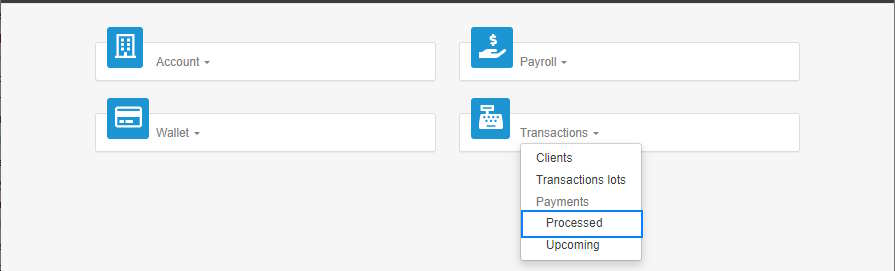
- Access the ACCEO Transphere homepage.
- Click Transactions and select Processed.
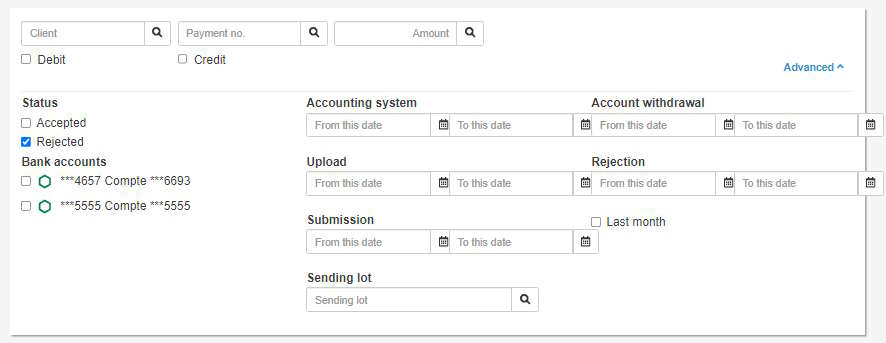
- In the upper part of the Payments page, click the Advanced arrow to define the report parameters.
- In the Status group, check the Rejected box.
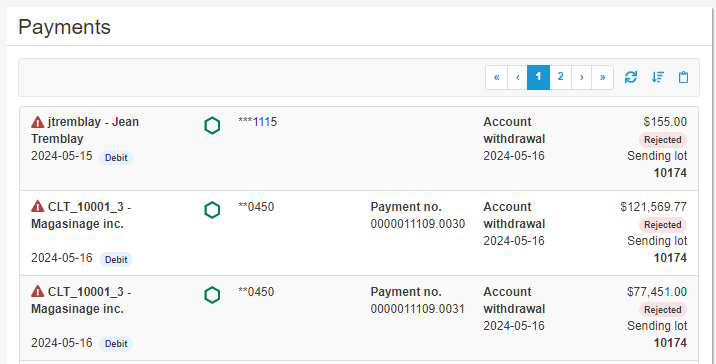
- In the Rejection group, define a range of dates, if required. The list below displays the rejected payments according to defined criteria.
- To refresh the data in the list, click the Refresh
 button.
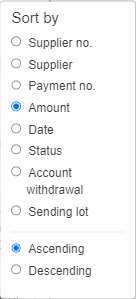
 - To sort payments in the list, click the Sort
 button and select the appropriate option.
 - To copy the content from the list to import it into Excel, click the Copy to clipboard
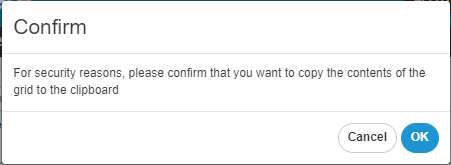
 button. A message requests confirmation.
 - Click OK. A message indicates that the content has been successfully copied.
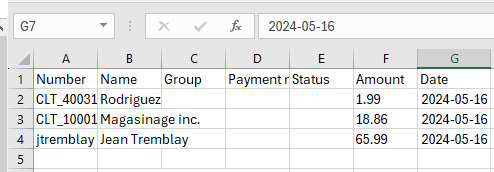
- Open Excel and copy the content of the Clipboard.
- The rejected payments information is copied in the file (number, name, amount, date, etc.). Save the Excel file.