How to add an employee ?
To add an employee, proceed as follows:
- Access the ACCEO Transphere homepage.
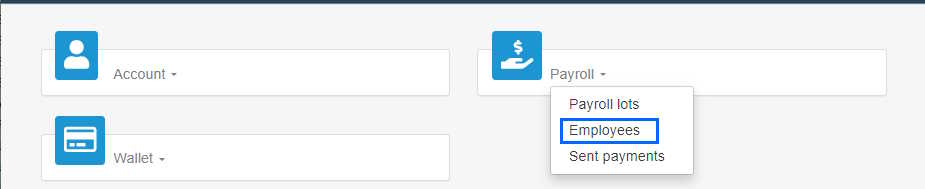
- Click Payroll and select Employees.
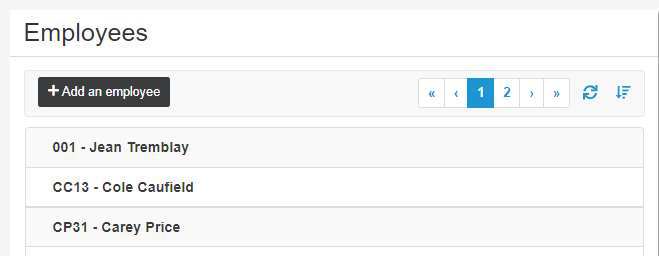
- In the Employees page, click Add an employee.
- Enter the Employee no. as defined in the payroll software and the employee’s Name.
- Enter the information related to their bank account, i.e. the Branch number, the Financial institution code (e.g. 815 for Desjardins) and the Bank account number.
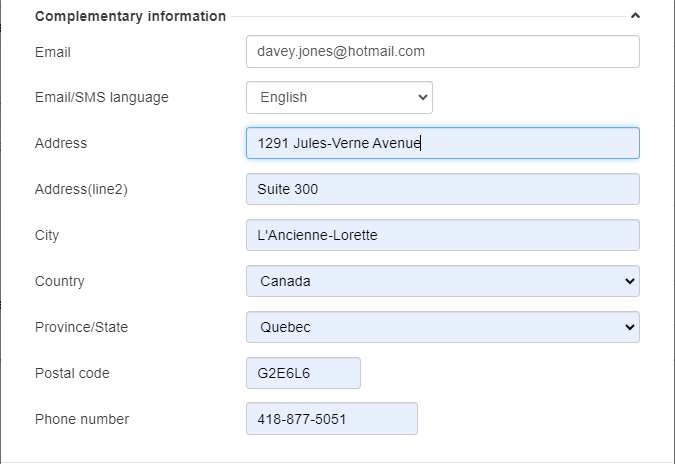
- Click Complementary information to display the lower part of the page.
- Enter the additional information about the employee (email, address, etc.).
- Click Add to add the employee to the list of employees.
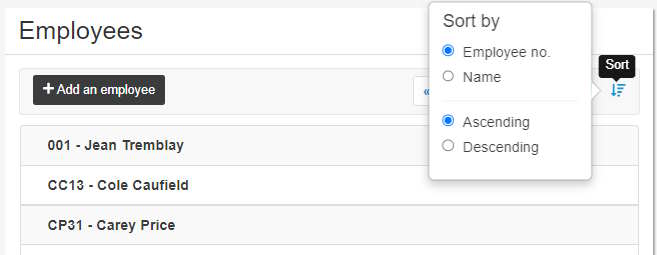
- To sort employees in the list, click the Sort button
 and select the appropriate sort options.
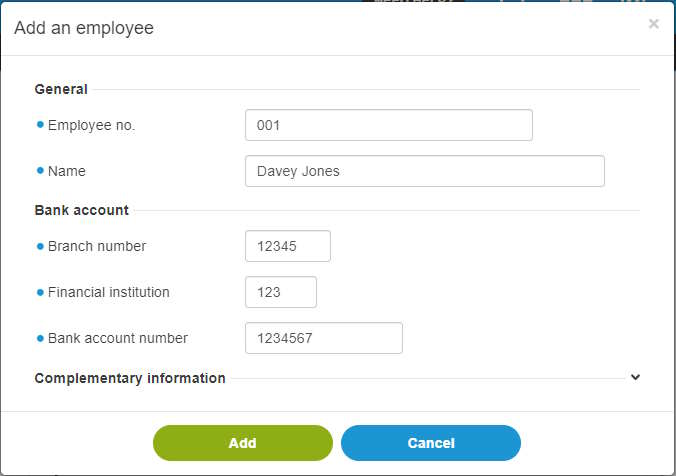
Note: The fields preceded by a blue dot  are mandatory.
 and select the appropriate sort options.