How to add a transaction to a client ?
To add a transaction to a client, proceed as follows:
- Access the ACCEO Transphere homepage.
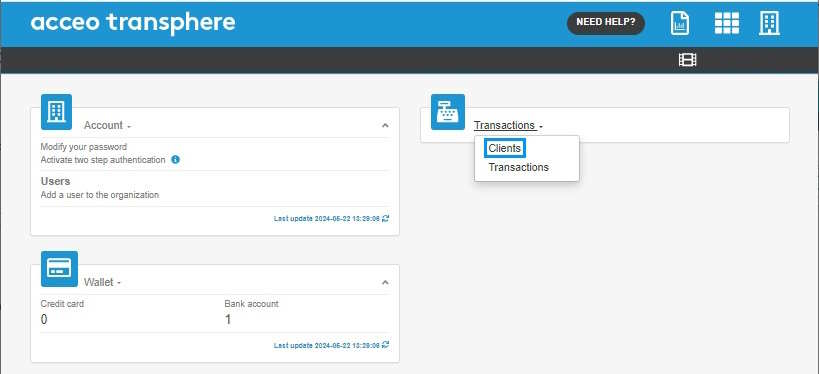
- Click Transactions and select Clients.
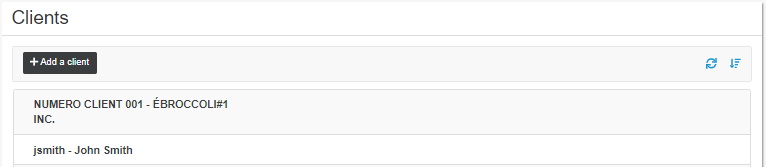
- In the Clients page, click the appropriate client and open their file.
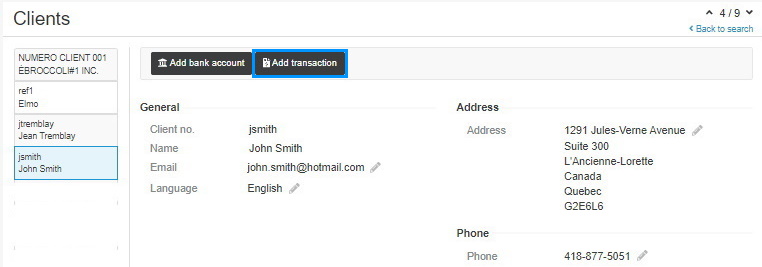
- Click the Add transaction button.
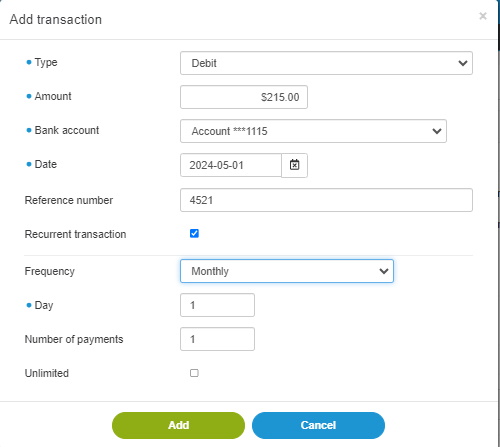
Note: The fields preceded by a blue  dot are mandatory.
- Select the Type of transaction (e.g. debit).
- Enter the Amount of the transaction.
- Select the Bank account.
- Click the calendar to select the Date.
- Enter a Reference number if required.
- If it is a transaction which repeats periodically, check the Recurrent transaction Fields are displayed below.
- Select the invoicing Frequency: monthly, biweekly or weekly.
- Specify the Day of the month on which the transaction must be submitted.
- Enter the Number of payments required to settle the total transaction or check the Unlimited box if it is an unlimited number of payments.
- Click Add. A message indicates that the transaction has been successfully added.
Note: If the transaction is recurring, the end date in the range of dates is excluded from the payment. For example: For a one-year recurrence in 12 payments, the system displays a range from October 1, 2024, to October 1, 2025. The end date is excluded from the calculation. The date of the last payment will be September 1, 2025.